> ## Documentation Index
> Fetch the complete documentation index at: https://ngquct-fix-favorite-tables-storage.mintlify.site/llms.txt
> Use this file to discover all available pages before exploring further.
# iCloud Sync
> Sync connections, groups, and tags to your Macs, iPhone, and iPad, and settings, table favorites, and SSH profiles between Macs
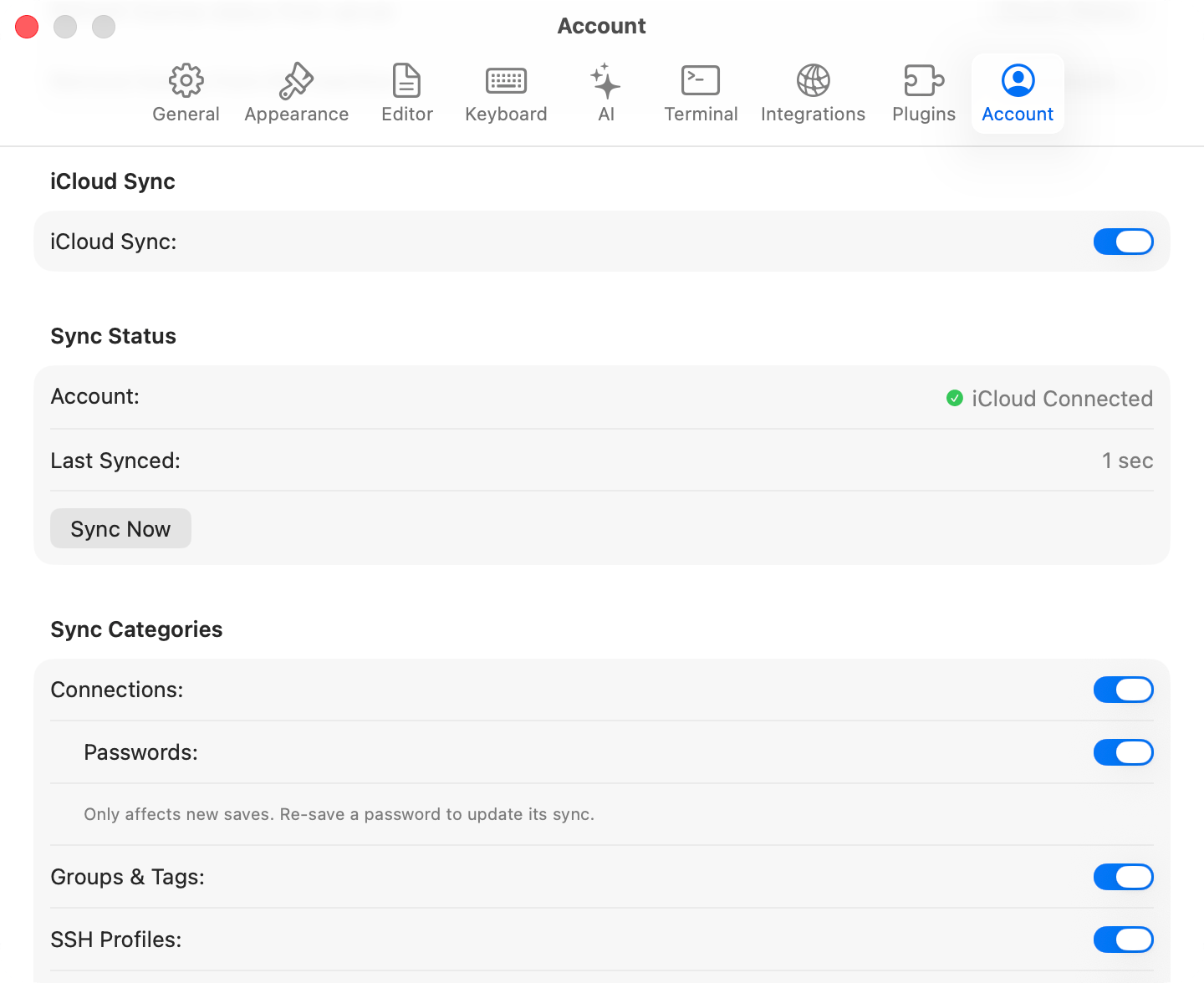
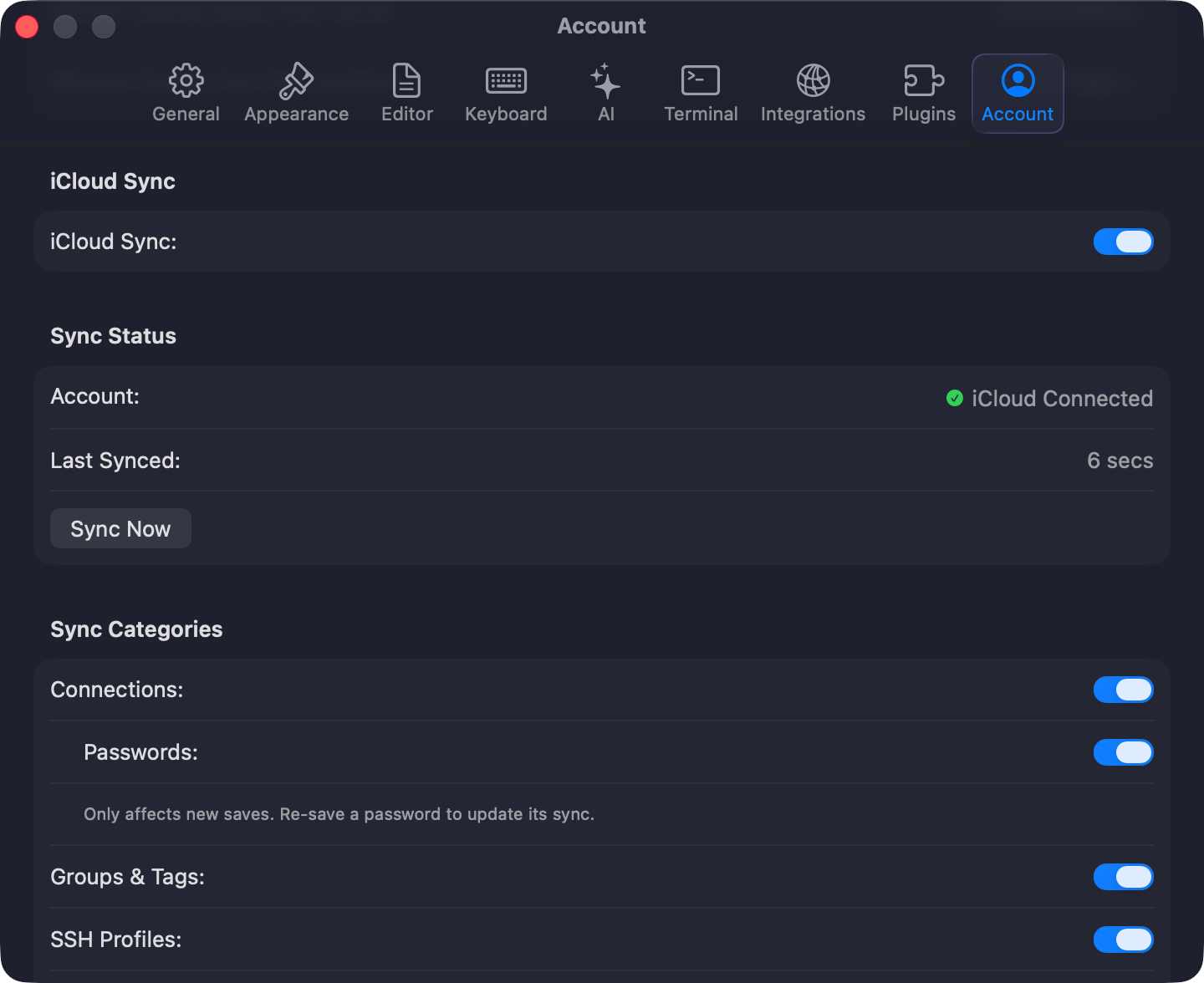
Sync needs a Starter or Team [license](/features/licensing) and starts off. Press `Cmd+,`, open **Settings > Sync**, turn on **Sync this Mac with iCloud**, pick the categories, and click **Sync Now**. The iPhone and iPad app shares the same CloudKit data but carries connections, groups, and tags only.
 ## What syncs
Each synced category has its own toggle under **Sync Categories**.
| Data | Synced | Notes |
| - | - | - |
| **Connections** | Yes | Host, port, username, database type, SSH/SSL config, and whether the connection is a favorite |
| **Passwords** | Opt-in | Nested under Connections, and carried by Apple's iCloud Keychain rather than TablePro's own records. Turning it on affects new saves only, so re-save a password to sync it. On iPhone and iPad the same switch is **Settings > iCloud > Sync Passwords** |
| **Groups & Tags** | Yes | Nested group hierarchy and sort order included |
| **SSH Profiles** | Yes | Named [SSH profiles](/connections/ssh-profiles) |
| **Credential Profiles** | Not yet | Named [credential profiles](/connections/credential-profiles) stay on the Mac that created them until their CloudKit schema ships |
| **Table Favorites** | Yes | The names shown in the Favorites tab and pinned in table lists |
| **Table Folders** | Not yet | The sidebar's [folders](/features/connection-window#folders) stay on the Mac that created them until their CloudKit schema ships |
| **Database Favorites** | Yes | Favorited databases and their Development / Testing / Production tags |
| **Saved Queries** | Yes | Saved SQL and their folders |
| **Settings** | Yes | Between Macs only. General, Appearance, Editor, Data Grid, History, Tabs, Keyboard, and AI settings, plus custom AI slash commands and saved per-table column widths and order |
| **Linked SQL Folders** | No | Folder paths are per-Mac. Link the same Git repo on each Mac after cloning. The cached file index stays local too |
| **Sidebar state** | No | The sidebar's database filter and recent tables lists stay on each Mac |
| **Connection list order** | No | Recent connections and whether that section is shown, the sort order, and the order of favorites stay on each device |
A sync runs at launch, when you switch back to the app, and 2 seconds after you change anything synced.
## Keeping a connection off iCloud
A localhost or throwaway database is rarely worth a round trip. Mark it **Local only** in the connection form's **Advanced** pane, or right-click it and choose **Exclude from iCloud Sync**. It shows a struck-through cloud icon in the connection list, and the flag survives duplicating and exporting.
What belongs to the connection stays on this Mac with it: its table and database favorites, the saved queries and folders scoped to it, and its column widths, order, and hidden columns. Edits and removals you make to them wait here while the connection is Local only, and the first sync after you turn it off sends them. Deleting a Local only connection removes those items from this Mac and from nowhere else.
## Checking that it worked
The **Sync Status** section answers this: **Account** reads iCloud Connected or Not Available, **Last Synced** gives the relative time of the last successful run, and a failure prints in red under **Sync Now**.
When the same connection changed on two devices, TablePro merges field by field, so a name edited on one Mac and a port edited on the other both survive. When one field changed in both places, the device that syncs last wins.
## Troubleshooting
If nothing syncs, confirm iCloud is signed in and iCloud Drive is enabled, then click **Sync Now**. For "iCloud account unavailable", sign in through **System Settings > Apple Account**.
Signing into a different iCloud account clears TablePro's sync metadata, so the next sync is a full fetch rather than a delta. Expect it to take longer once.
When a license expires, sync stops and local data stays where it is. Re-activate to resume.
A license TablePro has not been able to check for 30 days pauses sync separately, under **Sync Paused** rather than **Sync Off**. Click the indicator, or **Check Again** in **Settings > Sync**, to try the server again. Local data stays where it is either way.
## What syncs
Each synced category has its own toggle under **Sync Categories**.
| Data | Synced | Notes |
| - | - | - |
| **Connections** | Yes | Host, port, username, database type, SSH/SSL config, and whether the connection is a favorite |
| **Passwords** | Opt-in | Nested under Connections, and carried by Apple's iCloud Keychain rather than TablePro's own records. Turning it on affects new saves only, so re-save a password to sync it. On iPhone and iPad the same switch is **Settings > iCloud > Sync Passwords** |
| **Groups & Tags** | Yes | Nested group hierarchy and sort order included |
| **SSH Profiles** | Yes | Named [SSH profiles](/connections/ssh-profiles) |
| **Credential Profiles** | Not yet | Named [credential profiles](/connections/credential-profiles) stay on the Mac that created them until their CloudKit schema ships |
| **Table Favorites** | Yes | The names shown in the Favorites tab and pinned in table lists |
| **Table Folders** | Not yet | The sidebar's [folders](/features/connection-window#folders) stay on the Mac that created them until their CloudKit schema ships |
| **Database Favorites** | Yes | Favorited databases and their Development / Testing / Production tags |
| **Saved Queries** | Yes | Saved SQL and their folders |
| **Settings** | Yes | Between Macs only. General, Appearance, Editor, Data Grid, History, Tabs, Keyboard, and AI settings, plus custom AI slash commands and saved per-table column widths and order |
| **Linked SQL Folders** | No | Folder paths are per-Mac. Link the same Git repo on each Mac after cloning. The cached file index stays local too |
| **Sidebar state** | No | The sidebar's database filter and recent tables lists stay on each Mac |
| **Connection list order** | No | Recent connections and whether that section is shown, the sort order, and the order of favorites stay on each device |
A sync runs at launch, when you switch back to the app, and 2 seconds after you change anything synced.
## Keeping a connection off iCloud
A localhost or throwaway database is rarely worth a round trip. Mark it **Local only** in the connection form's **Advanced** pane, or right-click it and choose **Exclude from iCloud Sync**. It shows a struck-through cloud icon in the connection list, and the flag survives duplicating and exporting.
What belongs to the connection stays on this Mac with it: its table and database favorites, the saved queries and folders scoped to it, and its column widths, order, and hidden columns. Edits and removals you make to them wait here while the connection is Local only, and the first sync after you turn it off sends them. Deleting a Local only connection removes those items from this Mac and from nowhere else.
## Checking that it worked
The **Sync Status** section answers this: **Account** reads iCloud Connected or Not Available, **Last Synced** gives the relative time of the last successful run, and a failure prints in red under **Sync Now**.
When the same connection changed on two devices, TablePro merges field by field, so a name edited on one Mac and a port edited on the other both survive. When one field changed in both places, the device that syncs last wins.
## Troubleshooting
If nothing syncs, confirm iCloud is signed in and iCloud Drive is enabled, then click **Sync Now**. For "iCloud account unavailable", sign in through **System Settings > Apple Account**.
Signing into a different iCloud account clears TablePro's sync metadata, so the next sync is a full fetch rather than a delta. Expect it to take longer once.
When a license expires, sync stops and local data stays where it is. Re-activate to resume.
A license TablePro has not been able to check for 30 days pauses sync separately, under **Sync Paused** rather than **Sync Off**. Click the indicator, or **Check Again** in **Settings > Sync**, to try the server again. Local data stays where it is either way.